# Spawning and Despawning Items

Now that we have players moving around, let's learn how to *spawn* and *despawn* [NetworkObjects](/docs/guides/features/networked-gameobjects-and-scripts/networkobjects.md).

While you can [Instantiate](https://docs.unity3d.com/ScriptReference/Object.Instantiate.html) and [Destroy](https://docs.unity3d.com/ScriptReference/Object.Destroy.html) regular Game Objects, Network Objects need to be Spawned and Despawned, this tells FishNet to synchronize the action over the network. FishNet stores all network object prefabs in a collection called the [Spawnable Prefabs](/docs/fishnet-building-blocks/scriptableobjects/spawnableprefabs.md). You can see this and customize it on the [NetworkManager](/docs/fishnet-building-blocks/components/managers/network-manager.md).

{% hint style="success" %}
We have added a large green cube to act as the floor which you can do too, but this isn't a vital step.
{% endhint %}

{% stepper %}
{% step %}

#### **Creating the item network object prefab**

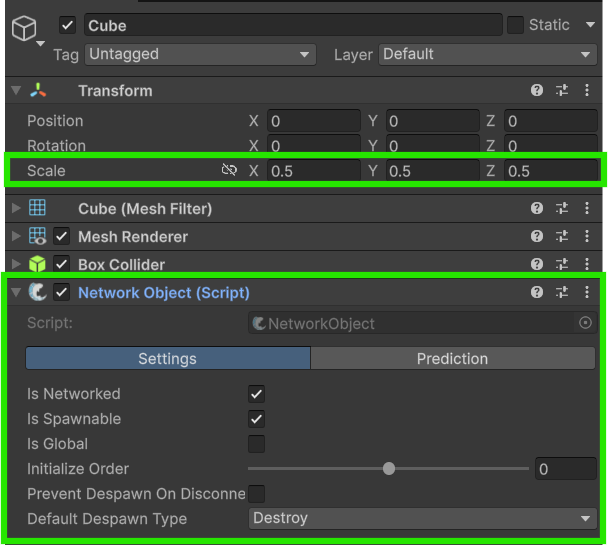
Let's create a **Cube** in the scene hierarchy, and add a **NetworkObject** component to it. We've also decreased it's scale by half so that it doesn't look too large.\
Then drag it into the project window to turn it into a prefab; you can destroy the original game object in the scene hierarchy now.

<figure><img src="/files/jEXYYfXf2SUfJA1rJFI1" alt="An image of a Cube Game Object set to half scale and with a NetworkObject component added."><figcaption><p>The Cube with size adjusted and NetworkObject added</p></figcaption></figure>
{% endstep %}

{% step %}

#### **Creating a script to spawn the cube**

Now create a script called `PlayerCubeCreator` and add it to your **Player Prefab**. This script is going to be responsible for spawning our new cube item across the network.

{% tabs %}
{% tab title="Old Input System" %}
{% code title="PlayerCubeCreator.cs" lineNumbers="true" %}

```csharp
using FishNet.Object;
using UnityEngine;

public class PlayerCubeCreator : NetworkBehaviour
{
    public NetworkObject CubePrefab;

    private void Update()
    {
        // Only the local player object should perform these actions.
        if (!IsOwner)
            return;

        if (Input.GetButtonDown("Fire1"))
            SpawnCube();
    }

    // We are using a ServerRpc here because the Server needs to do all network object spawning.
    [ServerRpc]
    private void SpawnCube()
    {
        NetworkObject obj = Instantiate(CubePrefab, transform.position, Quaternion.identity);
        Spawn(obj); // NetworkBehaviour shortcut for ServerManager.Spawn(obj);
    }
}

```

{% endcode %}
{% endtab %}

{% tab title="New Input System" %}
{% code title="PlayerCubeCreator.cs" lineNumbers="true" %}

```csharp
using FishNet.Object;
using UnityEngine;
using UnityEngine.InputSystem;

public class PlayerCubeCreator : NetworkBehaviour
{
    public NetworkObject CubePrefab;

    public override void OnStartClient()
    {
        if (IsOwner)
            GetComponent<PlayerInput>().enabled = true;
    }

    public void OnAttack(InputValue value)
    {
        if (value.isPressed)
            SpawnCube();
    }

    // We are using a ServerRpc here because the Server needs to do all network object spawning.
    [ServerRpc]
    private void SpawnCube()
    {
        NetworkObject obj = Instantiate(CubePrefab, transform.position, Quaternion.identity);
        Spawn(obj); // NetworkBehaviour shortcut for ServerManager.Spawn(obj);
    }
}
```

{% endcode %}
{% endtab %}
{% endtabs %}

{% hint style="info" %}
This may be a great time to read [this page](/docs/guides/features/network-communication/remote-procedure-calls.md) about RPCs[^1] such as the [ServerRpc](/docs/guides/features/network-communication/remote-procedure-calls.md#serverrpc) we use here.
{% endhint %}

Because this script contains a ServerRpc, it will also need to be a **NetworkBehaviour**. The `Update` method listens for the user to press the <kbd>Fire1</kbd>/<kbd>Attack</kbd> button (typically the left mouse button) and then calls `SpawnCube`.

**Understanding `SpawnCube`:**

* The **ServerRpc** attribute: This is crucial. It means this method is intended to be called by a client, but it will *execute only on the server*. The client sends a message to the server, requesting this method to be run.
* `Spawn(obj);`: This is the most critical line for networked objects. Calling `Spawn(obj)` on the `NetworkObject` tells FishNet's `ServerManager` to "spawn" this object over the network. This means the server will now instruct all currently connected clients (and any clients that connect later) to instantiate their own replica of this object.

{% hint style="info" %}
You can read our more in-depth page about **Spawning** [here](/docs/guides/features/networked-gameobjects-and-scripts/spawning.md).
{% endhint %}
{% endstep %}

{% step %}

#### **Assigning the prefab to your script**

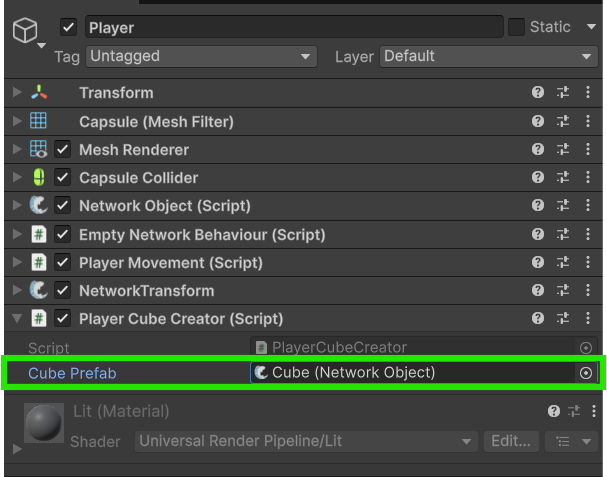
Now select your **Player Prefab** and assign your **Cube Prefab** to the "Cube Prefab" field in your newly created **Player Cube Creator** script.

<figure><img src="/files/4su90XCHSm4VPPyPuLxl" alt=""><figcaption><p>PlayerCubeCreator with cube prefab assigned</p></figcaption></figure>

{% hint style="info" %}
You may have noticed that an **Empty Network Behaviour** component was automatically added to your game objects with a **NetworkObject** component. This happens because each FishNet requires every NetworkObject to also have a NetworkBehaviour on it, and it will automatically add an empty one if it doesn't detect any. You can safely remove this empty component as you have added multiple other **NetworkBehaviour** components, but it's not a problem either way.
{% endhint %}
{% endstep %}

{% step %}

#### **Test if the spawning works**

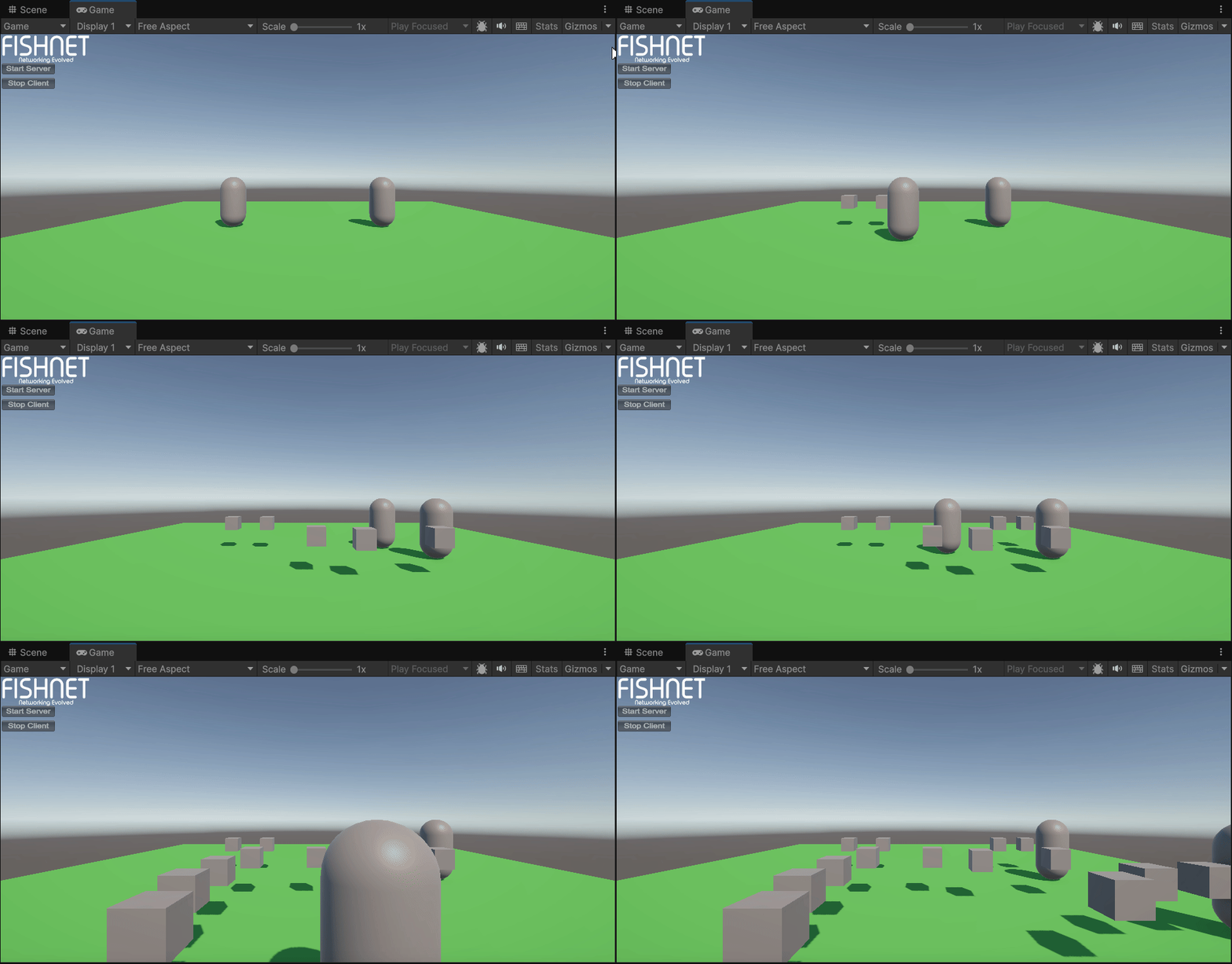
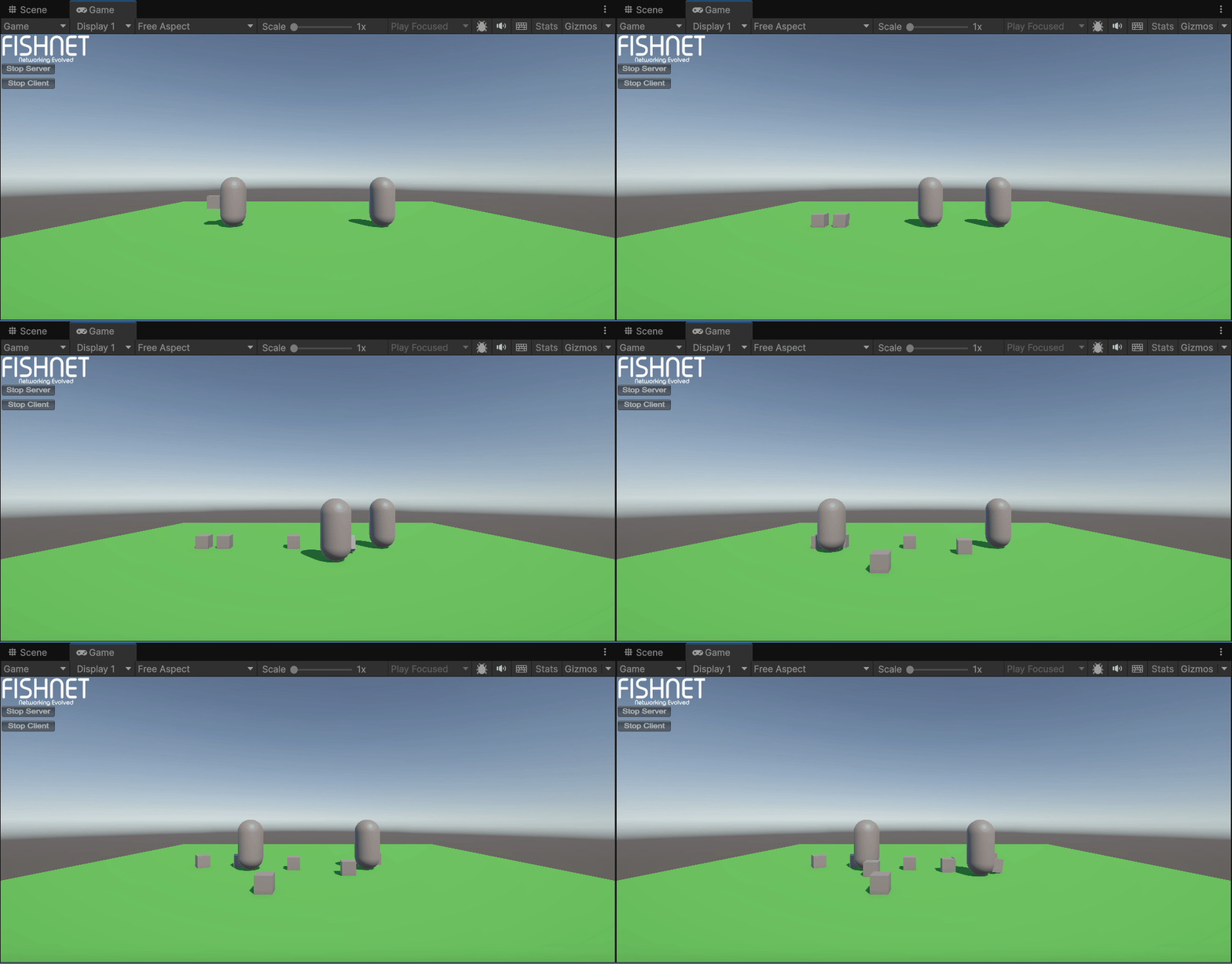
Now launch a couple instances of your game and see if you can run around and spawn cube items by pressing the <kbd>Fire1</kbd>/<kbd>Attack</kbd> button. The cubes should be visible on all devices connected to each other.

<figure><img src="/files/W0IsNTOVmOyiI0uc7rPv" alt=""><figcaption><p>Player spawning cubes</p></figcaption></figure>
{% endstep %}

{% step %}

#### **Add some physics**

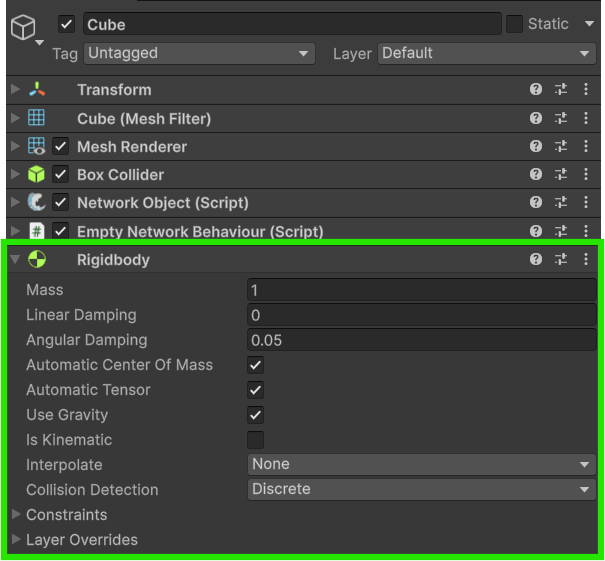
Static cubes are boring! Let's add a **Rigidbody** component to the **Cube Prefab** to enable basic physics interactions with them.

<figure><img src="/files/LquprPe5eRYxktvnknPu" alt=""><figcaption><p>Rigidbody added to the cube</p></figcaption></figure>

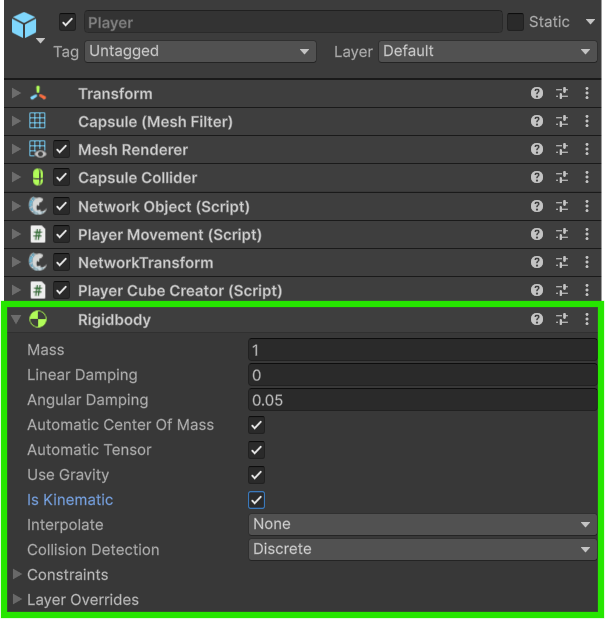
Now the cubes should roll around and collide with the ground. Let's add a **Rigidbody** to the **Player** now and set it to **Is Kinematic**.

<figure><img src="/files/xog4SZvaSwZ4UJDxchtq" alt=""><figcaption><p>Player with kinematic rigidbody added</p></figcaption></figure>
{% endstep %}

{% step %}

#### **Test if the physics works**

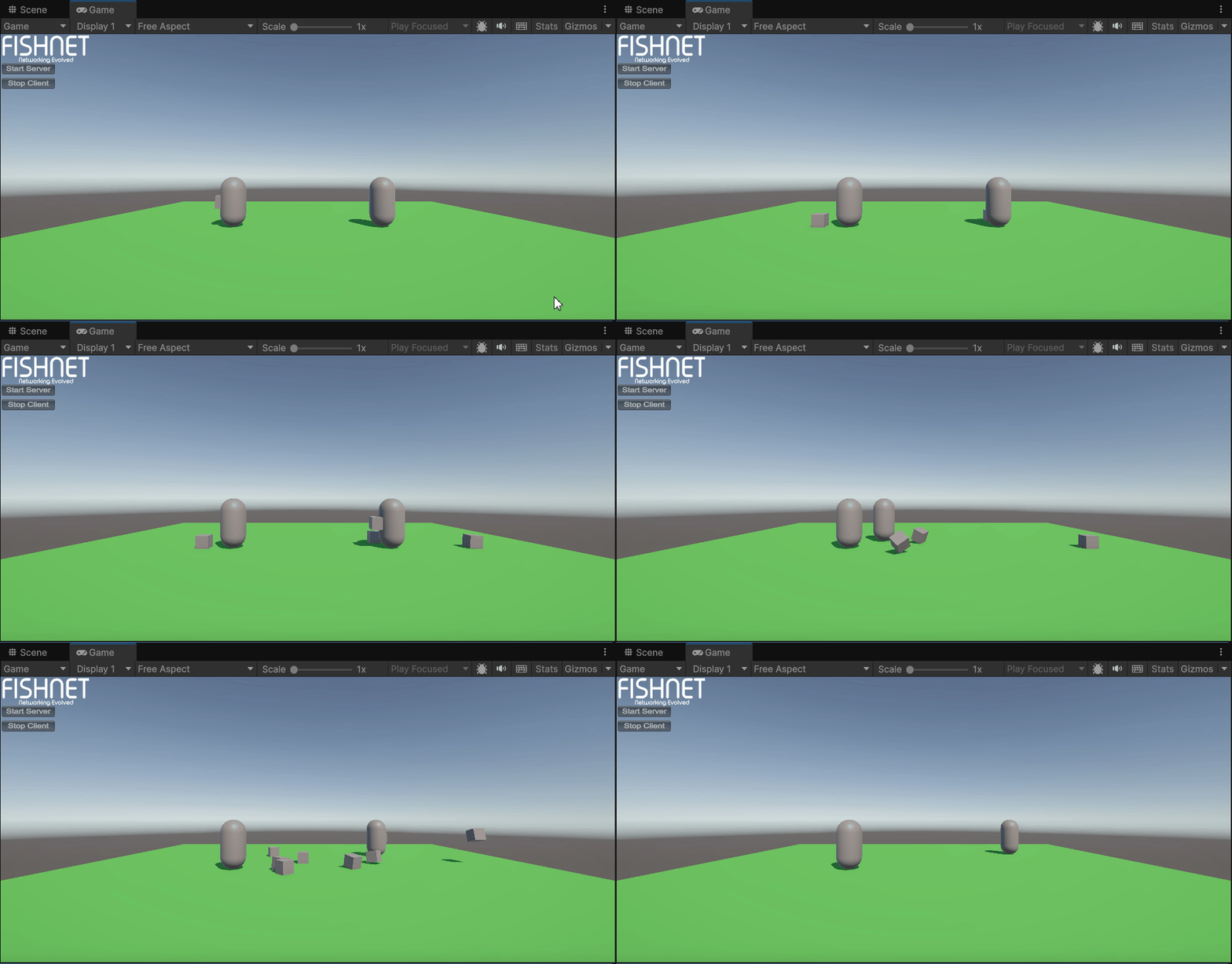
If you launch the game now, the cubes should have basics physics working.

<figure><img src="/files/VmqOBsc0PxajOWuNGHKT" alt=""><figcaption><p>Players spawning physics cubes</p></figcaption></figure>

You may notice the cubes' positions don't always sync up after they are moved around, that's because we haven't done any positional syncing besides the initial position syncing that FishNet automatically did when we called `Spawn`.

{% hint style="info" %}
Networked Rigidbodies are a complex topic, and better suited to a different guide, but if you want to test a really basic setup up, you can add a [NetworkTransform](/docs/fishnet-building-blocks/components/network-transform.md) to your **Cube Prefab** and set its **Component Configuration** to **Rigidbody.**
{% endhint %}
{% endstep %}

{% step %}

#### **Script to despawn cubes on a timer**

Now that we can `Spawn` cubes successfully, let's `Despawn` them after a few seconds so that we don't end up with too many objects at once.

Create a new script called `DespawnAfterTime`:

{% code title="DespawnAfterTime.cs" lineNumbers="true" %}

```csharp
using FishNet.Object;
using System.Collections;
using UnityEngine;

public class DespawnAfterTime : NetworkBehaviour
{
    public float SecondsBeforeDespawn = 3f;

    public override void OnStartServer()
    {
        StartCoroutine(DespawnAfterSeconds());
    }

    private IEnumerator DespawnAfterSeconds()
    {
        yield return new WaitForSeconds(SecondsBeforeDespawn);

        Despawn(); // NetworkBehaviour shortcut for ServerManager.Despawn(gameObject);
    }
}

```

{% endcode %}

This script uses the [OnStartServer](/docs/guides/features/networked-gameobjects-and-scripts/network-behaviour-guides.md#onstartserver) NetworkBehaviour override method to start a Coroutine which will `Despawn` the object. OnStartServer will run on the server when the object is initialized with the network.

`Despawn` needs to be called on the server, and it will destroy the game object locally as well as on all clients automatically for you.
{% endstep %}

{% step %}

#### **Assigning the script and testing**

Open your **Cube Prefab** now and add the **Despawn After Time** script you just made to the object.

Launch the game again and observe the objects being Despawned successfully on the server and all clients after a few seconds.

<figure><img src="/files/uyzlxeLmXiBLJwhhuZcx" alt=""><figcaption><p>Cubes despawning after 3 seconds</p></figcaption></figure>
{% endstep %}
{% endstepper %}

{% hint style="info" %}
Download the project files with these completed steps here, or explore the repository:

<a href="https://github.com/maxkratt/fish-networking-getting-started/releases/download/spawning-and-despawning-complete/spawning-and-despawning.unitypackage" class="button primary" data-icon="down-to-line">Source Files</a> <a href="https://github.com/maxkratt/fish-networking-getting-started/tree/spawning-and-despawning-items" class="button secondary" data-icon="github">Repository</a>
{% endhint %}

[^1]: Remote Procedure Calls


---

# Agent Instructions: Querying This Documentation

If you need additional information that is not directly available in this page, you can query the documentation dynamically by asking a question.

Perform an HTTP GET request on the current page URL with the `ask` query parameter:

```
GET https://fish-networking.gitbook.io/docs/tutorials/getting-started/spawning-and-despawning-items.md?ask=<question>
```

The question should be specific, self-contained, and written in natural language.
The response will contain a direct answer to the question and relevant excerpts and sources from the documentation.

Use this mechanism when the answer is not explicitly present in the current page, you need clarification or additional context, or you want to retrieve related documentation sections.